
Solution / Symphony
Design the Screen,Then Schedule It
The canvas
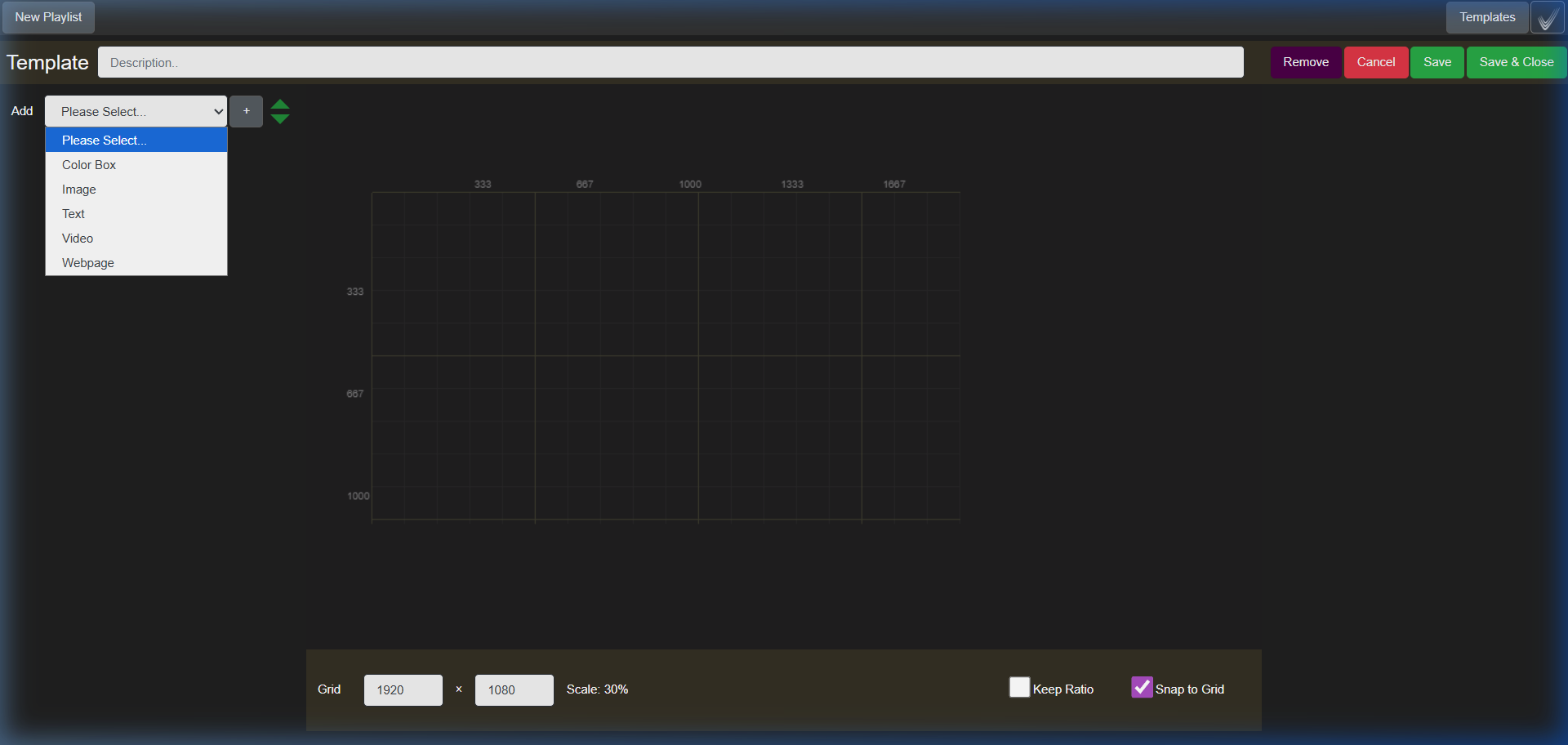
Five kinds of zone
A template is where things go on screen. Pick a zone type from the dropdown, place it, drag it to size, and stack more on top; they layer.
Video
A live channel or an uploaded file. Source, loop, mute, stretch and subtitles are set per zone.
Webpage
Any URL rendered live: scores, departures, a social wall, a menu from your POS.
Image
A PNG, JPG or GIF from the Filestore: a sponsor logo, a badge, a border.
Text
Static or dynamic text: a room name, the date and time, an announcement.
Color Box
A solid colour block for a background fill or a divider strip.
Zone / Video
Video
A live channel or an uploaded file. Source, loop, mute, stretch and subtitles are set per zone.
Zone / Webpage
Webpage
Any URL rendered live: scores, departures, a social wall, a menu from your POS.
Zone / Image
Image
A PNG, JPG or GIF from the Filestore: a sponsor logo, a badge, a border.
Zone / Text
Text
Static or dynamic text: a room name, the date and time, an announcement.
Zone / Color Box
Color Box
A solid colour block for a background fill or a divider strip.
Templates
Design once, reuse everywhere
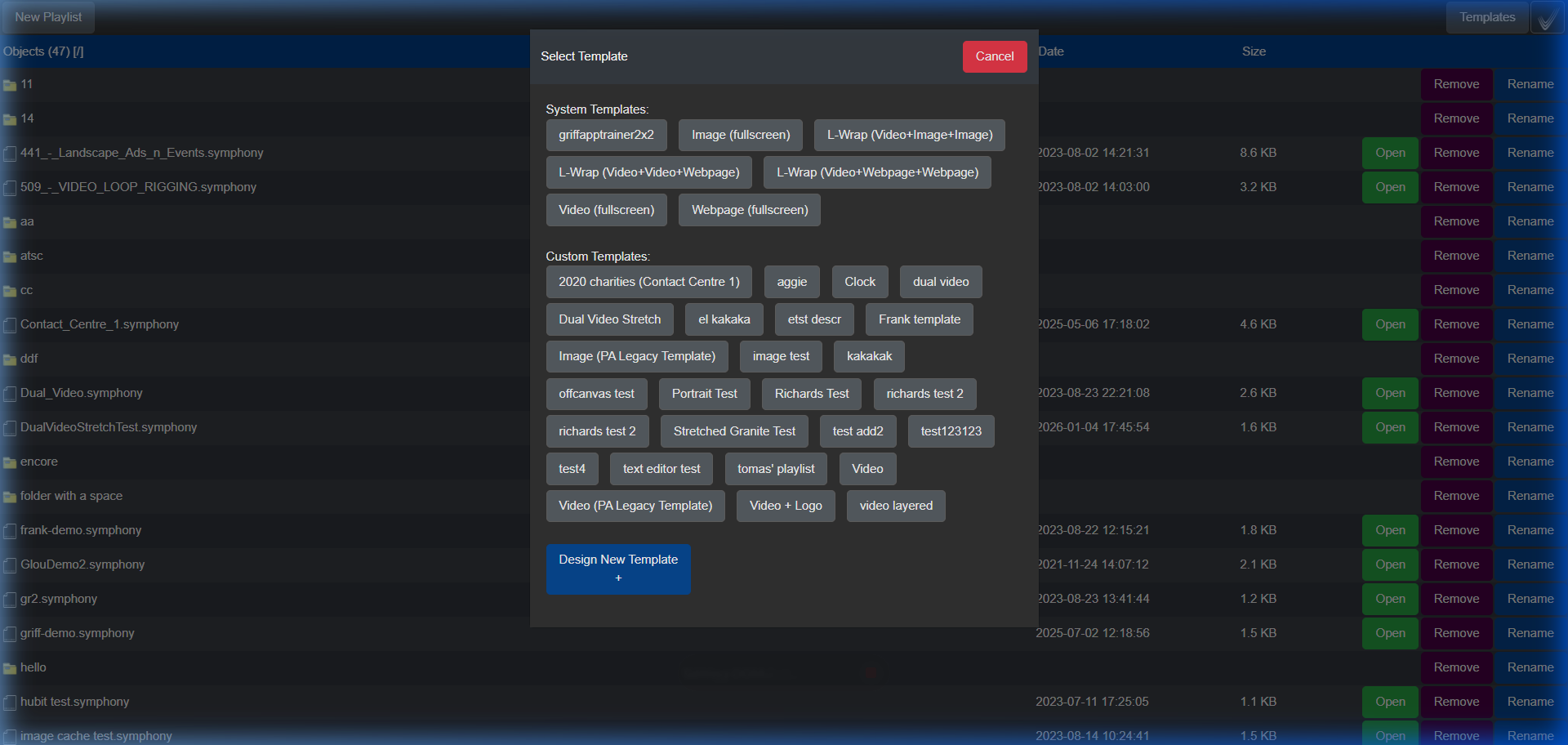
Five layouts come built in. Change an element in a template and every playlist using it changes with it.
| System template | Layout | Best for |
|---|---|---|
| Video Fullscreen | One video filling the screen | Advertising loops, live TV, promotions |
| Image Fullscreen | One image filling the screen | Posters, menus, announcements |
| L-Wrap | Video with a branded strip along one or two edges | Sponsored content, branded live TV |
| Video Matrix | Several video zones in a grid | Monitoring walls, multi-feed displays |
| Webpage Fullscreen | One web page filling the screen | Live data, dashboards, departure boards |
Custom templates
“Design New Template +” opens the designer on a 1920 × 1080 canvas, or any resolution you type in for a non-standard display.
One change, every playlist
Swap the sponsor logo in a template and every playlist that uses it shows the new one, instantly. A slide that has overridden that zone keeps its override until you clear it.
Logo over a live feed
A full-screen video zone linked to the SDI channel, an image zone with a transparent PNG in the corner, broadcast as a second channel. The original feed stays untouched; changing the sponsor takes under a minute.
Playlists
Slides, timed and in order
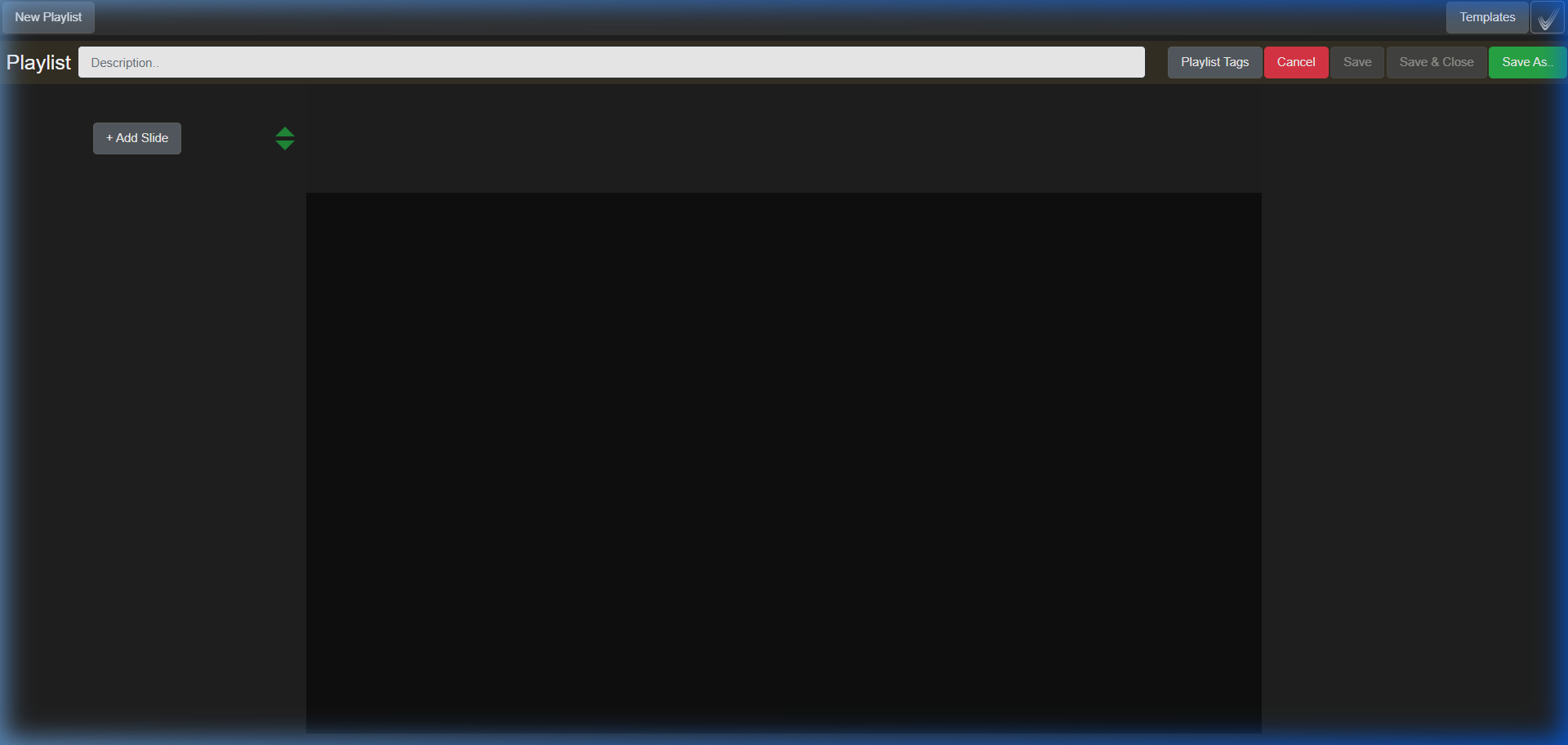
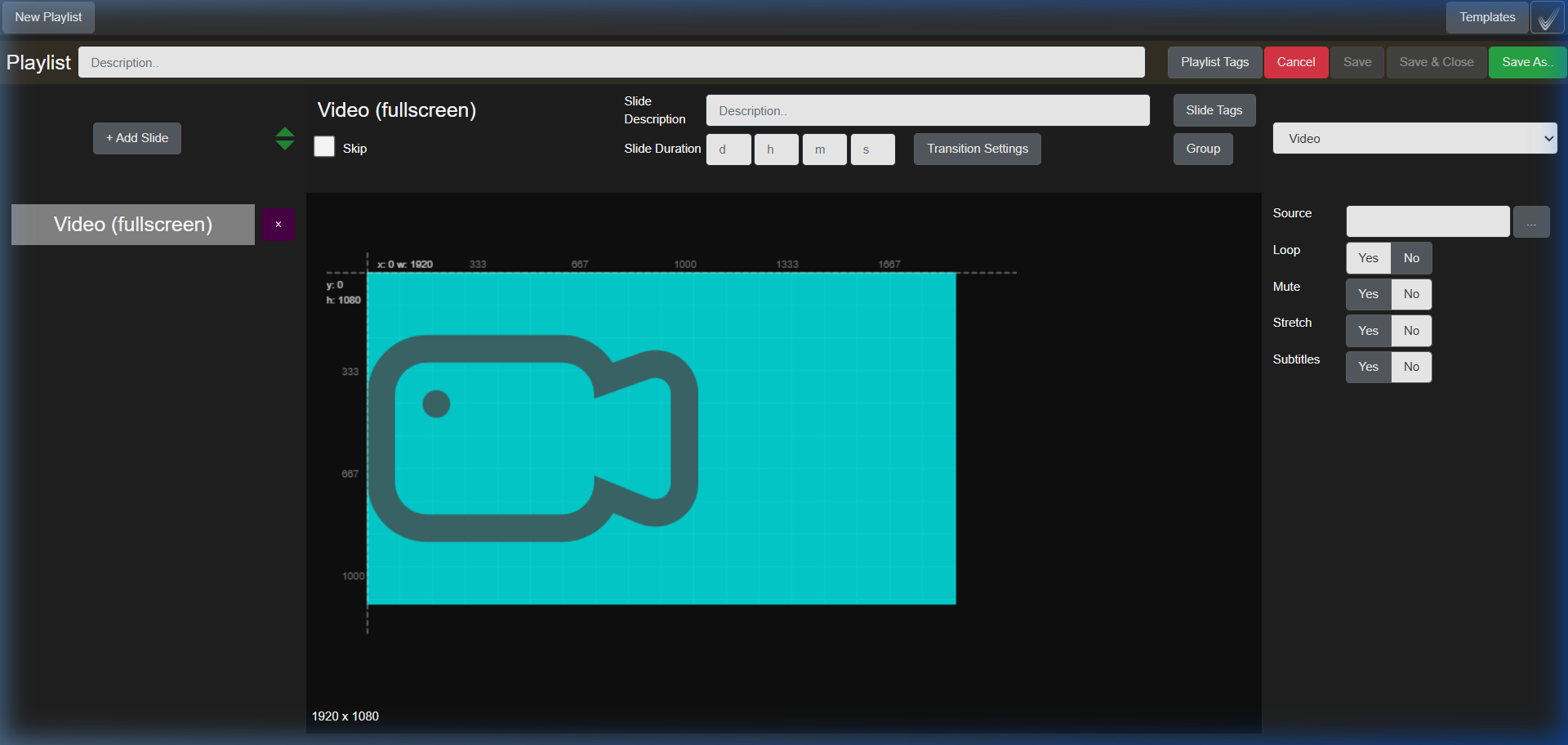
A playlist is a sequence of slides that plays through and loops. Each slide uses a template and holds the content for its zones.
- Duration
- How long the slide shows, written as 30s or 1m30s
- Skip
- Park a slide without deleting it, for seasonal content you will reuse
- Tags and Group
- Tag slides for scheduling rules; group slides so they always play as a unit
- Widget properties
- For a video zone: source, loop, mute, stretch, subtitles. Override any zone for this slide only
- Transition
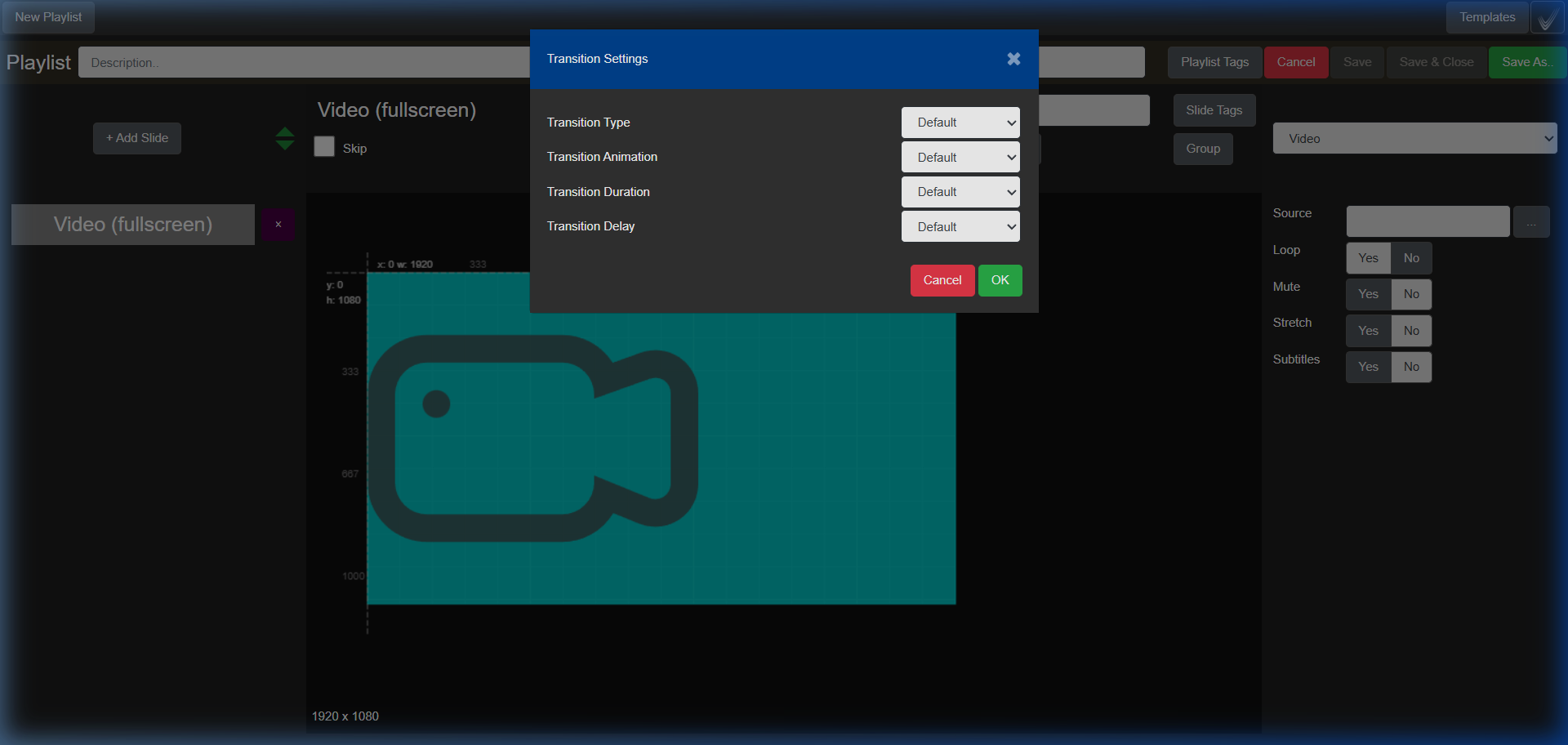
- Type (fade, cut, slide), animation preset, duration and delay between slides
The “Symphony” main screen lists every saved playlist with its name, date and size, with Open, Rename and Remove on each row.
Three ways to play it
On the screen, on the network, or from the cloud
All signage is distributed as channels, so a playlist can be chosen from Ovation at the screen or sent from Conductor, and scheduled like anything else.
On the screen itself
Send the playlist to an end point and it plays as a local channel; each screen can hold several. Because the file plays natively, a custom canvas such as a 1500 × 200 LED strip is reproduced pixel for pixel.
As a channel on the network
Drop the playlist into Playout and it is broadcast by multicast on its own channel number. Every screen tuned in shows the same frame at the same moment, whether ten screens or ten thousand.
From the cloud
Uploaded to the cloud and served as HLS for an audience beyond the local network.
A signage day, scheduled by Conductor
- Open
Screens power on
A Conductor schedule wakes the screens
- Then
Switch to the signage channel
The end points tune in automatically
- During
Change what plays
Scheduled channel changes as new content is needed
- Close
Power off, with the record
Event log and usage statistics export as proof of display
No extra equipment at the screen: the same Ovation player that shows live TV shows the signage, and the same schedules power it on and off. How Conductor schedules.
The workflow
From template to screen
Four steps, the way the user guide teaches them.
Step 01
Design a template
Add zones from the dropdown, drag them into place, snap to the grid. Or start from a system template.
Step 02
Add slides
Each slide takes a template and the content for its zones: which channel, which image, which URL.
Step 03
Time it
A duration per slide, skip or group where needed, and a transition between them.
Step 04
Play it
Push it to a screen, broadcast it with Playout, or serve it from the cloud. Conductor schedules the rest.
Live data and automation
If it works in a browser, it works on the screen
A webpage zone shows any URL live, and a playlist is a plain-text file any system can write.
Webpage zones
Your web developers build the page to look right in a browser; you put its address in the zone. No encoding, no special integration.
- Live sports scores and fixtures
- Train and bus departure boards
- Weather widgets
- Menu boards from a POS system
- KPI dashboards for manufacturing or logistics
- Social media walls
Playlists written by other systems
Symphony playlists are plain-text files with a documented specification, so any system that can write a file can generate one and upload it through the Chorus API. One racecourse’s odds system writes a new playlist every race morning with the day’s live-odds pages already in the webpage zones, and it is pushed to screens without anyone touching the content all day.
Everything in the Symphony screens is also available through the REST API, so a system of yours can design, schedule and play out without a person at the portal.
Announced
Symphony Live
A live-production front end for events, seminars and workshops, announced in StreamVue’s August 2026 overview alongside a substantially updated Symphony. Its mixed output will feed Vivo as a source for distribution. Not yet released.
Bring your screens to life
See a template designed, a playlist built and a channel on air in one sitting.